

Rescheduling, cancelling and statuses
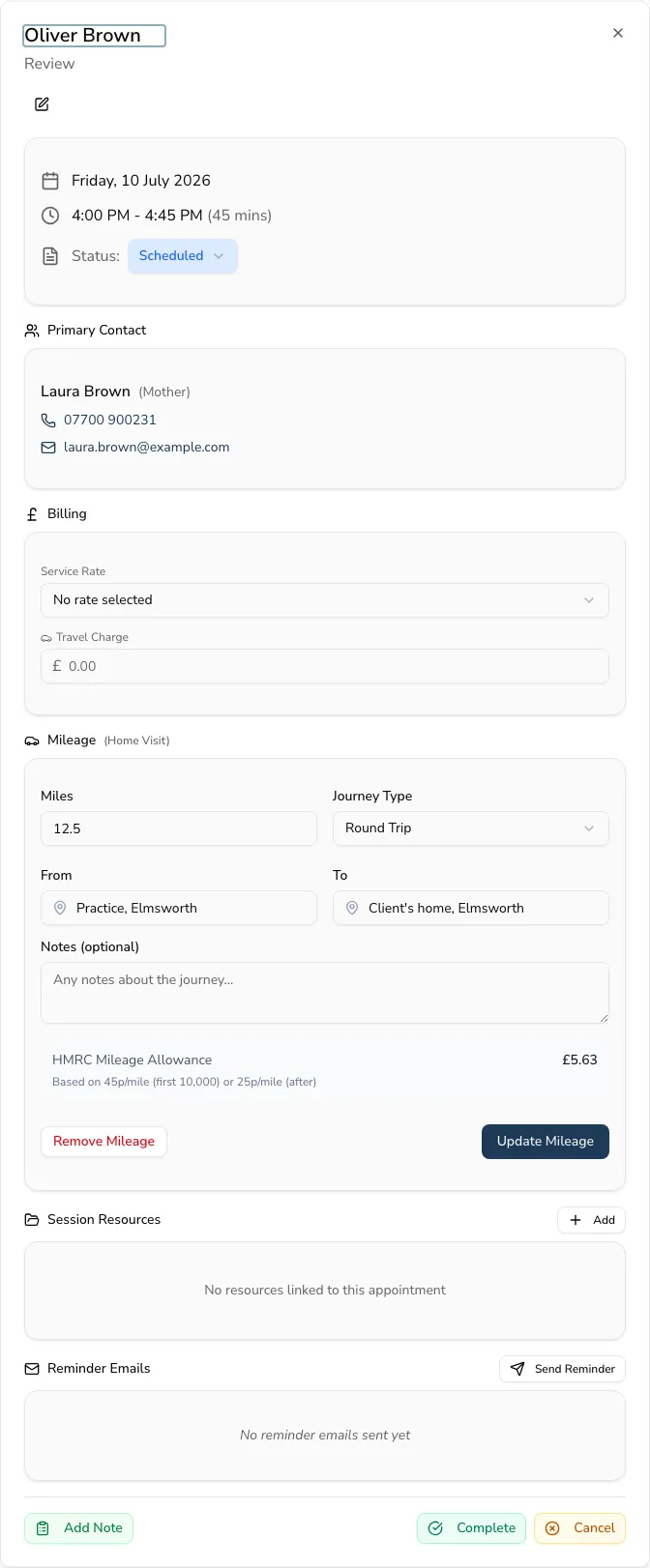
Plans change — a client cancels, a session runs over, a whole week needs moving. Click any appointment on the calendar to open it, and you can put it right without leaving the diary: update its status, edit the details, cancel one session or a whole repeating series, and call or email the family straight from the same screen.
What you can do here
Section titled “What you can do here”Opening an appointment gives you everything for that session in one place — the time and duration, who’s attending, any linked organisation and contract, and the session plan — plus:
- Call or email the client or their guardian directly (tap their number or address).
- Change the status as the day plays out.
- Edit the time, type, location, practitioners and other details.
- Cancel a single session, or an entire recurring series in one go.
Changing the status
Section titled “Changing the status”An appointment moves through: Scheduled → Confirmed → Completed, or Cancelled / No show. Cancelling or marking a no-show asks for confirmation first, and a cancelled appointment shows an undo option in case you change your mind.
Who cancelled — and did they give notice?
Section titled “Who cancelled — and did they give notice?”When you cancel an appointment, Practicos asks one extra question: who cancelled? Choose whether the client cancelled with notice, cancelled without notice, or the clinic cancelled — a therapist off sick, say, or a school closed for an INSET day. The answer is recorded with the cancellation and shows on the calendar and the appointment’s details — so over time you can see whether cancellations are coming with fair warning or at the last minute, without clinic-side cancellations muddying the picture (there’s a breakdown on practitioner analytics, and the calendar’s cancelled filter can narrow to any kind).
It’s always your call, never guessed from timings — a parent who rang at 9am to cancel a 2pm session gave notice, even if no one updated the diary until the evening. Appointments cancelled before this feature existed simply show as cancelled. Recording the answer doesn’t charge anyone or change any invoice — it’s information for you, nothing more.
Cancelling a group session (two or more children in one slot) cancels the whole session. To cancel just one child, open them from the attendee list and cancel from their record.
Editing an appointment
Section titled “Editing an appointment”Edit the time, type, location, practitioners, contract, session focus, notes, title or attendance. For a group session, Practicos asks whether to update all children or just this appointment — so a change meant for one child in the group doesn’t move everyone else’s session by accident.
Cancelling a recurring series
Section titled “Cancelling a recurring series”To cancel every future instance of a repeating appointment, use the dedicated cancel series action — it has its own confirmation so you don’t remove future sessions by accident.
Finding appointments with filters
Section titled “Finding appointments with filters”The calendar has filters to focus your view:
- Practitioner — My, All, or a specific person (team practices only).
- Needs notes — past appointments that don’t yet have a clinical note.
- Show / hide cancelled appointments — and while cancelled appointments are showing, narrow them to with notice, without notice, cancelled by clinic or unknown (older cancellations recorded before the notice question existed).